“I tried to find you on Google, but I couldn’t.”
Few things are more frustrating to hear from a customer, especially after you’ve paid for a website, launched it and told everyone about it.
So you check for yourself.
You type your business name into Google and scroll. A competitor is there, an old directory listing with your previous phone number is there. But your website is nowhere.
If you’re now asking “why is my website not showing up on Google?”, you’re in good company, and you’re probably closer to a fix than you think.
Most cases come down to a handful of problems, and many of them take minutes to fix once you know where to look.
And the tricky part is that “not showing up” can mean 3 very different things:
- Google may not know your site exists yet.
- Google may know about it but have been told not to show it. Often that’s a single setting you didn’t know was switched on.
- Your site may already be on Google, just buried on page four for the searches that matter.
Each one has a different fix. Working through a long checklist without knowing which you’re facing wastes time you don’t have.
So this guide starts with a 5-minute check that tells you which situation you’re in. Then it walks you through the fixes for that situation.
Along the way, we’ll cover Google Maps for local businesses, what this means for AI search, and how long it realistically takes to show up once the problem is fixed.
Key Takeaways
- Most cases fall into one of three situations: Google hasn’t found your site, something is stopping Google from showing it, or it’s showing but too far down to notice.
- Start with one quick search: type site:yourdomain.com into Google. If nothing comes up, Google hasn’t indexed your site yet. Indexed means saved in Google’s library of pages it can show.
- Three culprits explain most small business cases: the site is brand new, a “hide from search engines” setting was left on after launch, or there’s no sitemap (a file that lists your pages for Google).
- If you show up for your business name but not for searches like “plumber in Denver,” that’s a ranking problem, not a visibility problem. The fixes are better pages, more links from other sites, and a faster site.
- Local businesses missing from Google Maps usually need a claimed, verified and complete Google Business Profile.
- Once the problem is fixed, pages typically appear within a few days to a few weeks. Brand-new sites take longer than new pages on an established site.
Let’s find out which situation you’re in.
First, a 5-minute Check: Can Google See Your Site?
Before you change anything on your site, find out what Google actually knows about it.
Three quick checks will tell you which of the three situations you’re in, so you can skip straight to the fixes that apply and ignore the rest.
You don’t need any tools beyond Google itself and one free Google account.
Step 1: Search for your site with “site:”
Go to Google and type site: followed by your domain, with no space and no “https” or “www.” For example: site:konvart.com.
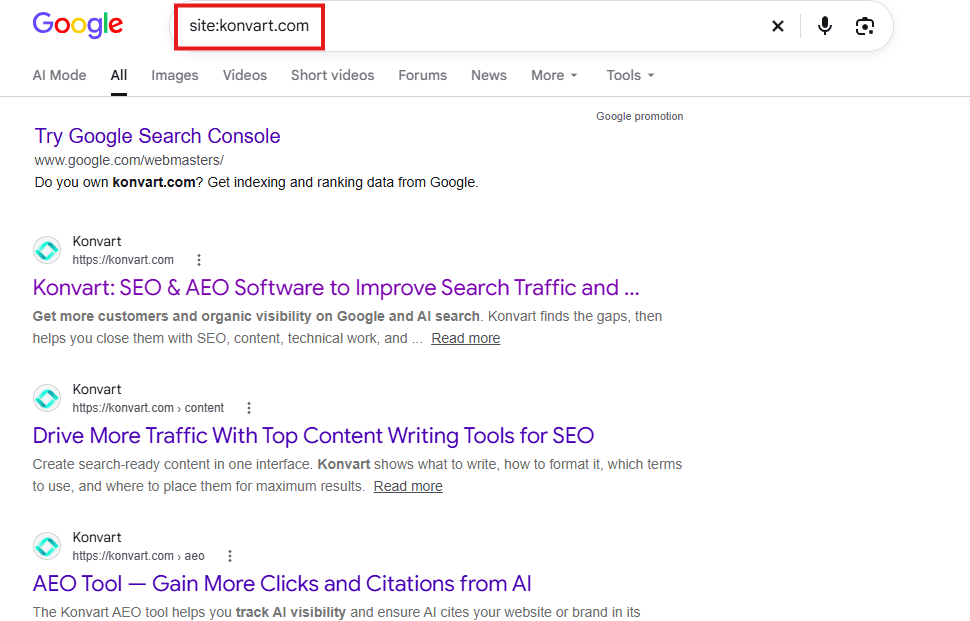
This shows the pages from your site that Google has saved in its index (its library of pages it can show in results).
Then look at what comes back:
- No results at all: Google hasn’t indexed any of your pages. You’re in Situation 1 or 2 (see next section). Step 3 will tell you which.
- Some pages, but not the ones you expected: Google knows your site but is missing key pages. Check those pages in Step 3.
- Plenty of pages, including your homepage: Google can see your site. Your issue is most likely where it ranks, so go to Step 2.
The site: search is a quick test, not an exact count. So treat it as a yes-or-no signal, not a full list.
Step 2: Search for your business name
Now search for your exact business name, the way a customer would. If your name is a common phrase, such as “Summit Legal,” add your city or what you do: “Summit Legal Chicago.”
- Your site shows up near the top: Google is showing your site. If customers still can’t find you, they’re probably searching for what you do (“divorce lawyer Chicago”) rather than your name. That’s a ranking problem: Situation 3 (see next section).
- Your site doesn’t show up, but Step 1 found your pages: Google has your site but ranks other results above it, often directories, review sites or a business with a similar name. That’s also Situation 3.
- Your site doesn’t show up, and Step 1 found nothing: move on to Step 3.
Step 3: Ask Google directly with Search Console
Google Search Console is a free tool from Google that shows how Google sees your site: which pages it has indexed, which it has skipped, and why.
If you haven’t set it up yet, add and verify your site.
Verification takes a few minutes, though a brand-new account may take a day or two to fill with data.
Once you’re in, paste your homepage URL, or any page you’re worried about, into the URL Inspection bar at the top.

Google will tell you one of two things:
- “URL is on Google”: the page is indexed. If you still can’t find it, it’s a ranking problem: Situation 3 (see next section).
- “URL is not on Google”: the page isn’t indexed, and Google shows a reason. That reason is the most useful clue in this whole guide.
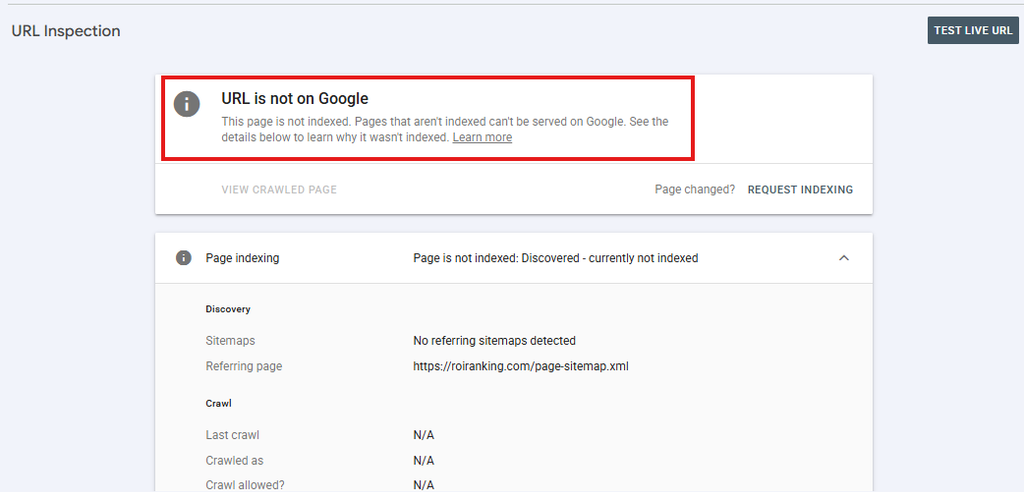
What your results mean
Match what Google told you to the right section:
| What Search Console says | What it means | Go to |
| “URL is unknown to Google” or “Discovered, currently not indexed” | Google hasn’t found or visited the page yet | Situation 1 |
| “Excluded by ‘noindex’ tag” | A setting or tag on the page tells Google not to show it | Situation 2 |
| “Blocked by robots.txt” | A file on your site tells Google not to visit the page | Situation 2 |
| “Alternate page with proper canonical tag” or “Duplicate without user-selected canonical” | Google is showing a different version of the page instead | Situation 2 |
| “Server error (5xx)” or “Not found (404)” | Google tried to load the page and couldn’t | Situation 2 |
| “Crawled, currently not indexed” | Google visited the page but decided it wasn’t worth showing yet | Situation 2 |
| “URL is on Google,” but you don’t appear for the searches that matter | Your page is indexed but ranks too low to be seen | Situation 3 |
| Your website shows up, but your business isn’t on Google Maps | Your Google Business Profile needs attention | Google Maps section |
Most readers will land in one row, which narrows a long list of possible causes down to one or two.
If Search Console shows a mix, for example, your homepage indexed but your service pages not, work through the situation that covers the pages you care about most.
Now that you know where you stand, start with the fixes that match your result.
Situation 1: Google Doesn’t Know Your Site Exists Yet
This is the most common situation for new websites, and the easiest to fix.
Google finds pages by following links from pages it already knows about, and by reading lists of pages that site owners send it.
If your site is new, has no links pointing to it, and hasn’t been introduced to Google, there’s simply no path for Google to find it yet.
Nothing is broken. Google just needs an introduction.
Why it happens
- The site is brand new: Google may take anywhere from a few days to a few weeks to discover and index a new site, even with no problems at all.
- No other websites link to it: Links from other sites are one of the main ways Google discovers new pages. A new site with no social profiles, directory listings or mentions elsewhere has no way in.
- Google hasn’t been given a sitemap: A sitemap is a file that lists the pages on your site, like a table of contents for Google. Most website platforms create one automatically, but Google doesn’t always know where to find it.
- Some pages aren’t linked from anywhere on your own site: A page that isn’t in your menu, footer or any other page is hard for Google to reach, even when the rest of your site is indexed. A florist might publish a new “wedding flowers” page and forget to add it to the menu, leaving it invisible to both visitors and Google.
How to fix it
1. Set up Google Search Console
If you skipped it during the 5-minute check, do it now.
Search Console is how you tell Google your site exists, and it’s where you’ll see whether the fixes below are working. It’s free, and you only need to set it up once.
2. Find your sitemap
Most platforms create a sitemap for you. Type your domain followed by the address below to check that yours exists:
| Platform | Where to find your sitemap |
| WordPress | yourdomain.com/wp-sitemap.xml (or /sitemap_index.xml if you use an SEO plugin like Yoast or Rank Math) |
| Shopify | yourdomain.com/sitemap.xml |
| Wix | yourdomain.com/sitemap.xml |
| Squarespace | yourdomain.com/sitemap.xml |
| Webflow | yourdomain.com/sitemap.xml, once the auto-generated sitemap is switched on in your site’s SEO settings |
If the page loads a list of links, you have a sitemap. If you see an error, your site doesn’t have one yet, and you’ll need to switch it on in your platform’s settings or add one through an SEO plugin.
If your website is custom-coded, you might need to work with your developer to create one.
3. Submit your sitemap in Search Console
This is the step most site owners miss. Having a sitemap isn’t enough on its own. Submitting it tells Google exactly where to look.
In Search Console, open Sitemaps in the left menu, paste your sitemap’s address (for example, sitemap.xml) and click Submit.
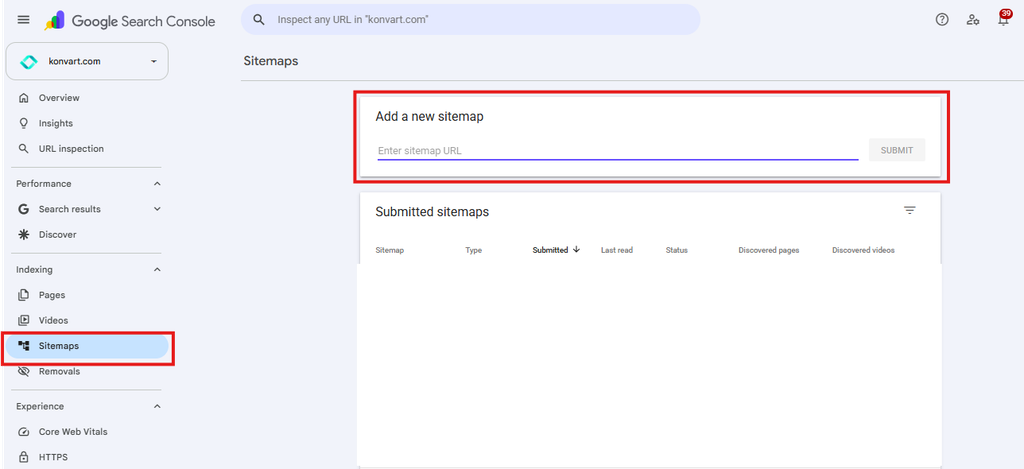
Google will show a status of “Success” once it has read the file. You only need to do this once, because your platform updates the sitemap automatically as you add pages.
If you connect your site to Konvart, it handles this for you.
When your site has no sitemap, Konvart creates a basic one, or switches on your platform’s built-in sitemap so new pages are added automatically.
Then it checks that your sitemap is submitted in Search Console, and submits it if it isn’t.
4. Request indexing for your most important pages
For pages you want on Google quickly, such as your homepage and main service or product pages, use the URL Inspection tool in Search Console.
Paste the URL, then click Request indexing.
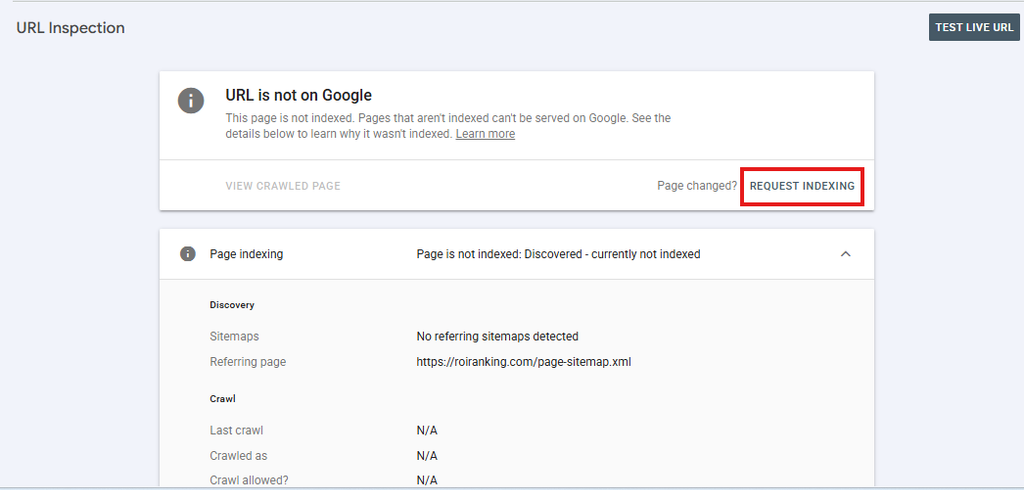
This asks Google to visit the page soon rather than waiting for it to come across the page on its own.
There’s a daily limit on requests, and asking repeatedly for the same page doesn’t speed things up. Save it for the five or ten pages that matter most.
5. Give Google a few ways in from other sites
A handful of links from other trusted sites helps Google discover your site faster and signals that it’s real.
For a new business, start with the easy ones:
- Your Google Business Profile, if you serve customers locally
- Your business’s social media profiles (LinkedIn, Facebook, Instagram)
- Industry and local directories relevant to your business, such as a trade association or chamber of commerce
- Partners, suppliers or clients who are happy to list you on their site
You don’t need hundreds of links to get indexed. A few genuine ones are enough to open the door.
Later, links from respected sites in your industry become one of the main drivers of ranking higher, which we cover in how to find the backlinks your competitors have
6. Link every important page from your own site
Make sure each page you want on Google can be reached from your menu, footer or another page in a few clicks.
If a page only exists as a link you’ve emailed to people, Google may never find it.
How you’ll know it’s working
Check Search Console’s Pages report after a week or two. You should see the number of indexed pages start to rise, and the URL
Inspection tool should start showing “URL is on Google” for the pages you submitted.
Your site: search will also begin returning results.
If a couple of weeks pass and Search Console still shows your pages as not indexed, but now with a different reason, Google has found your site and something else is holding it back.
That’s Situation 2.
Situation 2: Google Knows Your Site But Isn’t Showing It
This situation is the most frustrating, because your site is live and Google has found it, yet it still won’t appear.
Usually, something on your site is telling Google to stay away, often by accident.
It could be a setting left on after launch, a line of code copied over from a test version, or a page that loads for visitors but not for Google.
The good news is that these problems are specific. Once you know which one you have, the fix is usually quick.
Here’s how each cause shows up and what to do about it:
| Cause | How to spot it | Fix |
| “Hide from search engines” setting | Search Console shows “Excluded by ‘noindex’ tag” across the whole site | Switch the setting off in your platform |
| Noindex tag on specific pages | Same message, but only on certain pages | Remove the tag from pages you want on Google |
| Blocked by robots.txt | “Blocked by robots.txt” | Remove the line that blocks Google in your robots.txt file |
| Wrong or duplicate canonical tags | “Alternate page with proper canonical tag” or “Duplicate without user-selected canonical” | Point each page’s canonical tag to itself |
| Broken pages, redirects or server errors | “Not found (404),” “Page with redirect” or “Server error (5xx)” | Fix or redirect broken URLs, and check your hosting |
| Content that only loads with JavaScript | The page looks empty or partial in URL Inspection’s “View crawled page” | Make sure key text is in the page’s HTML |
| Thin or duplicate content | “Crawled, currently not indexed” | Make each page useful and different from the others |
| A manual action | A notice under “Manual actions” in Search Console | Fix the issue and request a review |
The “hide from search engines” setting
This is the single most common cause for small business sites, and the easiest to fix.
Most website platforms let you hide a site from search engines while it’s being built. Web designers often switch this on during development and forget to switch it off at launch.
One checkbox can keep an entire site off Google for months.
Check the setting for your platform:
- WordPress: Settings → Reading → make sure “Discourage search engines from indexing this site” is unchecked.
- Shopify: Online Store → Preferences → make sure password protection is turned off. A password-protected store isn’t indexed.
- Wix: Settings → SEO → make sure “Let search engines index your site” is switched on.
- Squarespace: Settings → Site availability → make sure the site is public, and check each page’s SEO settings for “Hide page from search results.”
- Webflow: Check your publishing settings and each page’s settings for anything that stops indexing, and make sure you’ve published to your custom domain, not just the test address.
If your website is custom-coded, ask your developer to confirm they’re not blocking it from Google results.
Noindex tags on individual pages
A noindex tag is a short instruction in a page’s code that tells Google, “Don’t show this page in search results.”
It’s useful for pages like thank-you pages or internal logins. But it sometimes ends up on pages that should be public, through an SEO plugin setting, a template or a developer’s change.
In WordPress, check the SEO plugin’s settings for that page (Yoast and Rank Math both have an option to allow or block search engines).
On other platforms, look in the page’s SEO or advanced settings.
Once the tag is gone, go back to URL Inspection on Google Search Console and click Request indexing.
Pages blocked by robots.txt
Robots.txt is a small file at yourdomain.com/robots.txt that tells search engines which parts of your site they may visit.
A single line, Disallow: /, blocks Google from your entire site.
It often gets carried over from a test version of the site during a redesign.
Open your robots.txt file in a browser. If you see Disallow: / under User-agent: * or User-agent: Googlebot, that’s your problem.
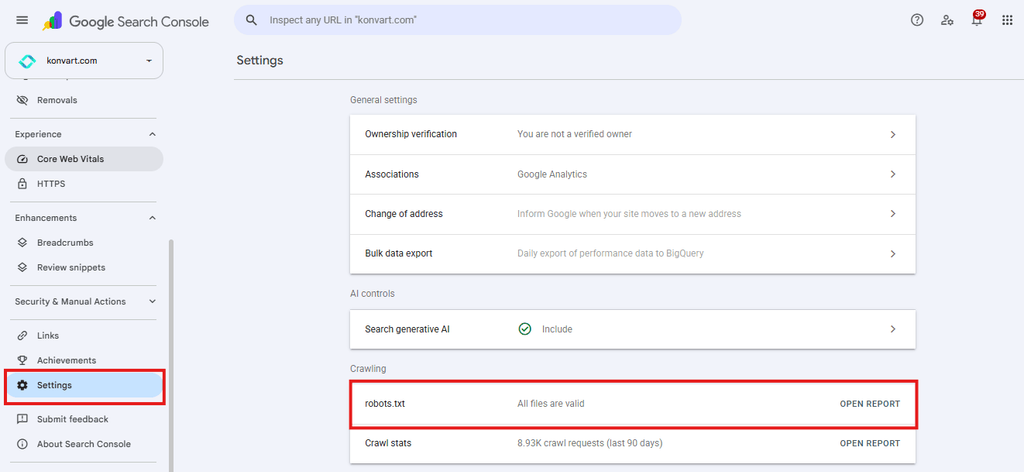
Remove the line, or ask your developer to. You can confirm the fix in Search Console under Settings → robots.txt.
Canonical tags pointing somewhere else
A canonical tag tells Google which version of a page is the “main” one when similar versions exist.
An online store, for example, may have the same product at several URLs because of filters or colors.
If a page’s canonical tag points to a different URL, or a page has more than one canonical tag, Google may show the other version or skip yours.
For most pages, the canonical tag should point to the page itself.
Your platform or SEO plugin usually handles this automatically, so a problem here often comes from a theme or plugin conflict worth raising with your developer.
Broken pages, redirects and server errors
If Google tries to visit a page and gets an error, it won’t show it.
This includes pages that return “404 not found,” pages that redirect to another URL, and server errors that happen when your hosting is slow or down.
Sitemaps that list broken or redirected URLs make this worse, because they point Google to pages that don’t work.
Fix or redirect broken URLs, remove old URLs from your sitemap, and check your hosting if Search Console reports server errors. Frequent 5xx errors usually mean your hosting plan can’t keep up.
Content Google can’t see
Some sites, especially those built with certain JavaScript frameworks, load their main text after the page opens.
People see the full page, but Google may see an almost empty one.
In Search Console’s URL Inspection, click View crawled page to see what Google actually received.
If your headings and text are missing, your developer will need to make sure the key content is included in the page’s HTML.
Thin or duplicate pages
“Crawled, currently not indexed” means Google visited the page and decided it wasn’t worth showing, at least for now.
This often happens with pages that add little: service pages with two sentences, product pages copied from the manufacturer, or ten location pages with the same text and only the city name changed.
The fix is to make each page genuinely useful.
An accountant’s “tax planning” page should explain who it’s for, what’s included and how it works, not just list the service name. Combine pages that say the same thing.
A manual action
Rarely, a Google reviewer may flag a site for breaking its spam policies. Common reasons are bought links, hidden text or hacked content.
You’ll find any notice in Search Console under Security & Manual Actions.
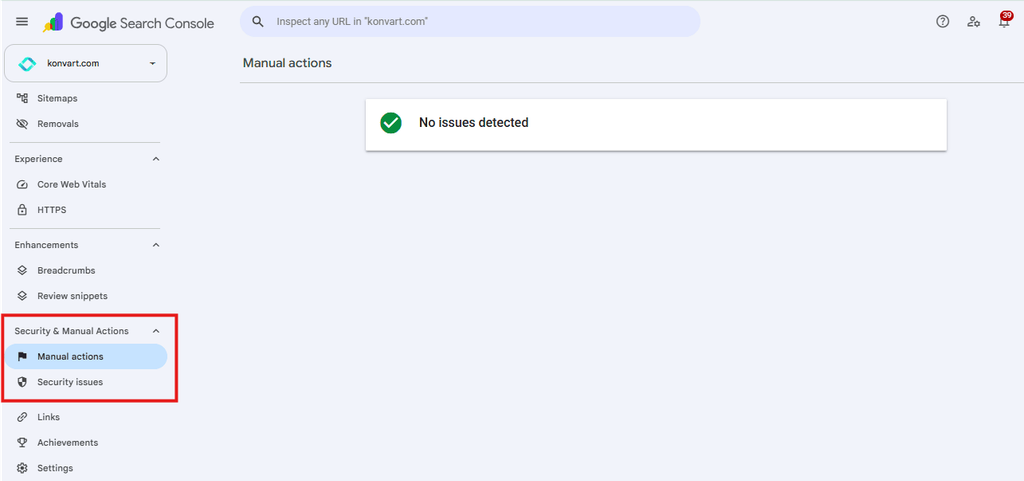
If you have one, the notice explains the problem. Fix it, then submit a reconsideration request from the same screen.
Most small business sites will never see this, so check it, but don’t assume it’s the cause.
Finding these problems faster
Checking each of these by hand means looking page by page, and most problems only show up once you know what you’re looking for.
A site audit scans every page at once and lists what’s wrong. Konvart’s audit, for example, flags:
- Pages in your sitemap that are blocked by a noindex tag or robots.txt
- Sitemap URLs that return errors or redirect
- Pages with multiple canonical tags
- JavaScript rendering problems
- Broken links and server errors
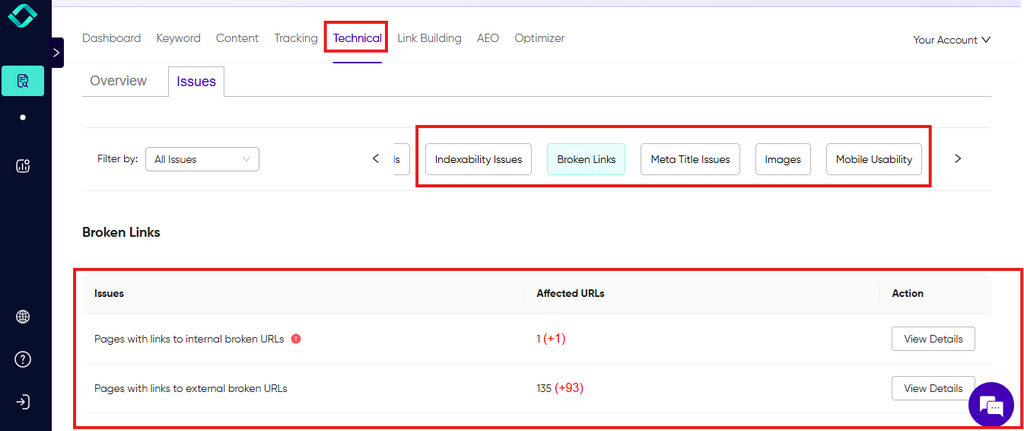
It runs weekly, so a setting that gets switched back on during a redesign is caught early.
For fixes it can make on a connected site, such as titles, schema and image alt text, the Optimizer applies them within the permissions you set. For the rest, it gives you exact steps to follow or pass to your developer.
After you fix it
Once you’ve made a change, open the matching issue in Search Console’s Pages report and click Validate fix.
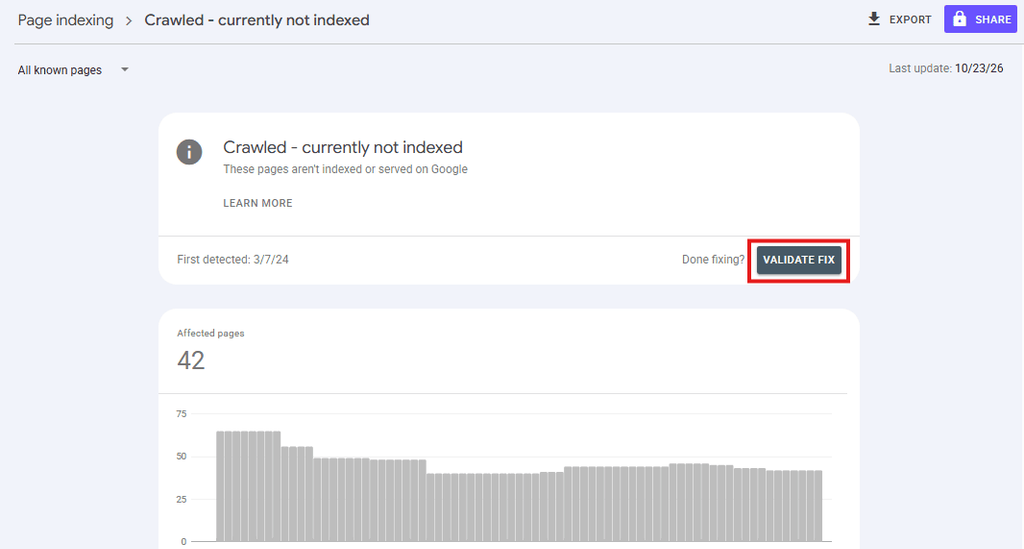
Google will recheck the affected pages over the next few days to weeks. For your most important pages, you can also request indexing in URL Inspection to speed things up.
If Search Console now shows your pages as indexed but you still can’t find them for the searches that matter, Google is showing your site. It just isn’t ranking it high enough yet.
That’s Situation 3.
Situation 3: Your Site is on Google, Just Not Where People Look
If Search Console says your pages are indexed, Google can see your site and is willing to show it. The problem is position.
Most people never scroll past the first few results, so a page sitting at position 35 might as well not exist. This is a ranking problem, and it takes longer to fix than the first two situations.
It also comes with a clearer path forward.
First, make sure you’re searching the right way
Before you change anything, check that you’re seeing what your customers see.
Google tailors results to location, device and search history, so your own search can be misleading.
- Search in a private or incognito window, so your browsing history doesn’t skew the results.
- Search the way customers do: They rarely type your business name. They type what they need: “emergency plumber near me,” “payroll software for startups,” “vegan bakery in Austin.”
- Check your real position: Search Console’s Performance report shows the searches your pages appear for and their average position, so you aren’t guessing from one manual search. You can also use a rank tracker to monitor your position for the searches that matter.
If you now find your site on page one for your name but nowhere for the services you offer, that’s normal for a newer site. It tells you where to focus.
Why your site ranks too low to be seen
- Bigger, older sites are competing for the same searches: A new running shoe store won’t outrank Nike for “running shoes” in its first year. It can rank for “trail running shoes for wide feet” much sooner. So targeting specific, lower-competition searches first is how most small sites win their early traffic. Keyword research can show you which searches are realistic for your site to win.
- The page doesn’t match what searchers want: Look at what currently ranks on page one for your target search. If Google shows guides and you have a sales page, or shows product listings and you have a blog post, your page is the wrong type for that search.
- The page is too thin to compete: A service page with one paragraph won’t beat competitors that explain pricing, process, coverage and FAQs. Google ranks the page that answers the searcher’s question most completely.
- Few other sites link to you: Backlinks (links from other websites to yours) work like recommendations. When a competitor has links from industry publications, local news and partner sites and you have none, Google has more reason to trust them.
- The site is slow or hard to use on a phone: Speed and mobile experience are rarely the only reason a page ranks poorly. But on a close call, the faster, easier page tends to win.
What to do about it
Ranking is a longer project than fixing a setting, so start with the pages that bring in customers: your homepage, main service or product pages, and the one or two blog posts closest to a sale.
- Pick one realistic search for each key page, and make sure the page clearly answers it.
- Improve the page so it’s at least as complete and useful as what currently ranks.
- Earn a few relevant links from directories, partners, suppliers and industry sites, starting with the ones your competitors already have.
- Fix speed and mobile issues flagged in your site audit.
- Track the same pages for a few months, because ranking changes take weeks, not days.
This is the approach Konvart’s Optimizer is built around.
It picks up to 20 core pages and works out whether each one needs better content or more links.
It tracks them through Search Console for three to six months and, once a page reaches a good position, moves on to the next.
If your website ranks but your business still doesn’t appear in the map results when people search nearby, the issue sits outside your website, in your Google Business Profile.
Not Showing Up on Google Maps?
For a local business, “not showing up on Google” often means missing from the map results, the three businesses shown with a map when someone searches “coffee shop near me” or “dentist in Leeds.”
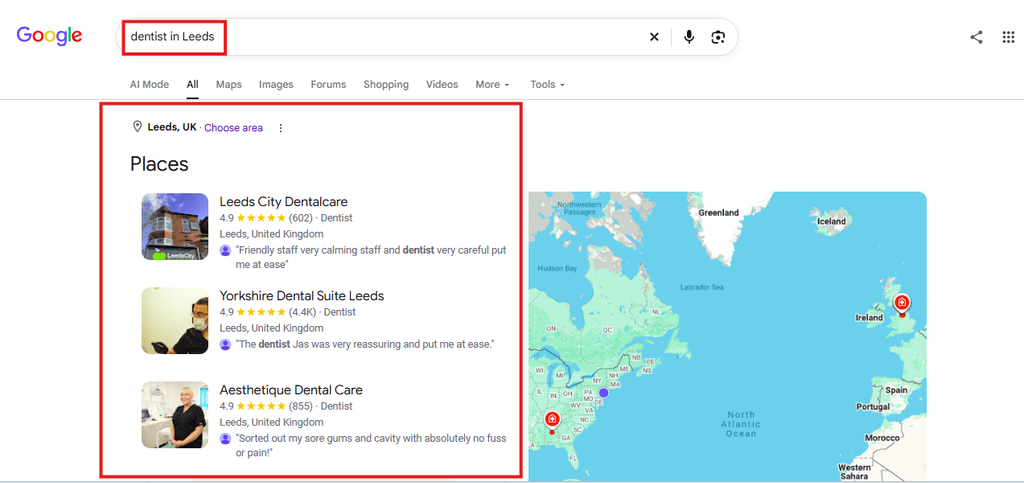
These results don’t come from your website.
They come from your Google Business Profile, the free listing that shows your address, hours, reviews and photos on Google Search and Maps.
So a business can have a perfectly indexed website and still be invisible on the map. If that’s your situation, work through this checklist:
- Claim and verify your profile: Search for your business on Google Maps. If a listing exists, claim it. If not, create one at business.google.com. Google won’t show an unverified profile reliably, and verification (by phone, email, video or post, depending on your business) is the step owners most often leave half-finished.
- Choose the right primary category: This is one of the strongest signals Google uses to decide which searches you appear for. A physiotherapy clinic listed as “Medical clinic” will struggle to show up for “physiotherapist near me.”
- Use the same name, address and phone number everywhere: Your profile, website, social pages and directory listings should match exactly. An old address on a directory or a different phone number on Facebook can make Google less sure which details are correct.
- Set your service area if you visit customers: Plumbers, cleaners and other businesses that travel to customers can hide their address and list the areas they serve instead.
- Fill in every section: Add opening hours, services, photos, a description and a link to your website. Complete profiles give Google more to match against searches.
- Ask happy customers for reviews, and reply to the reviews you get. The number of reviews, how recent they are and how you respond all affect how visible you are, and they influence whether people choose you once they see you.
- Check for a suspension: If your profile disappears suddenly, sign in and look for a suspension notice. These are often triggered by keywords stuffed into the business name or an address Google can’t confirm.
Distance matters too. Google favors businesses close to the person searching, so a café two miles away may not show up for someone searching from across town, even with a perfect profile.
That’s why checking from your own desk can be misleading.
The local rank tracker shows where you appear in the map results and local listings across a 5, 10 or 20 km radius, so you can see how visible you actually are across the area you serve.
Google Search and Maps aren’t the only places customers look anymore, though. More people now ask AI tools for recommendations, and the problems in this guide affect those answers too.
Will This Affect AI Search Too?
Yes. AI answers depend on search indexes in the same way Google’s results do.
Google’s AI Overviews and AI Mode draw on pages Google has already indexed, so a page that doesn’t show up in regular search can’t be quoted in an AI answer either.
Other assistants work the same way: Microsoft Copilot relies on Bing, and tools like ChatGPT and Perplexity use their own crawlers along with outside search indexes to find pages to cite.
That means the fixes in this guide do double duty.
Two extra checks help with AI search specifically:
- Don’t block AI crawlers by accident: Some robots.txt files, security plugins and hosting firewalls block bots such as OAI-SearchBot (used for ChatGPT search) or PerplexityBot. If you want these tools to recommend you, make sure their search crawlers can reach your site.
- Submit your sitemap to Bing as well: Bing Webmaster Tools is free and can import your site straight from Google Search Console, so it only takes a few minutes. That puts your pages in front of Bing-powered assistants too.
Being indexed only gets you in the door, though. Whether an AI tool mentions you depends on whether your pages answer questions clearly and whether other trusted sites mention you.
To find out where you stand, see our guide to LLM visibility, or compare the best AI visibility tools for tracking your brand in ChatGPT, Gemini and AI Overviews.
How Long Does it Take to Show Up on Google?
The honest answer is that it depends on which problem you fixed and how established your site is.
Google doesn’t publish exact timelines, and two sites making the same fix can see different results.
But the ranges below are a realistic guide to what to expect:
| What you fixed or did | When you can expect to show up |
| Published a new page on an established site and requested indexing | A few days to about a week |
| Launched a brand-new website and submitted the sitemap | A few days to a few weeks to be indexed |
| Removed a noindex tag, robots.txt block or “hide from search engines” setting | Usually days to a few weeks, once Google recrawls the pages |
| Fixed broken pages, redirects or server errors | Days to a few weeks, as Google revisits the affected URLs |
| Improved thin or duplicate pages (“Crawled, currently not indexed”) | Several weeks to a few months, with no guarantee for every page |
| Submitted a reconsideration request after a manual action | Days to several weeks for Google’s review |
| Claimed and verified a Google Business Profile | Often within days of verification, though some profiles take longer |
| Started ranking for searches that bring in customers | A few weeks, and depending on the competitiveness, it can take 3-6 months |
A few things affect where you land within these ranges:
- How established your site is: Google visits sites it already knows and trusts more often. A café that has had a website for five years will see a new menu page indexed faster than a café that launched last week.
- How many other sites link to you: Links give Google more paths to your pages and more reasons to come back.
- How big the site is: An online store with 5,000 product pages takes longer to index fully than a ten-page consultancy site.
- Whether you fixed the real cause: If pages stay unindexed after a few weeks, check URL Inspection again. The reason Google gives may have changed, pointing to a second problem.
While you wait, don’t keep resubmitting the same pages or making changes every few days. Repeat requests don’t speed up indexing, and constant edits make it harder to tell what worked.
Check Search Console’s Pages report once a week, then spend the time on what helps next: better pages and a few good links.
Knowing the timeline helps. But for a busy founder or a small marketing team, the hard part usually isn’t waiting. It’s finding the time to check, fix and follow up in the first place.
What Fixing This Looks Like With Konvart
Every fix in this guide is something you can do yourself with Search Console and an hour or two.
The caveat is that it rarely stays fixed.
A redesign switches a setting back on, a plugin update adds a noindex tag, or a new service page never gets linked from the menu. Most business owners only find out when a customer says they couldn’t find them.
Here’s what the same process looks like when Konvart handles it.
Picture the owner of a home cleaning company in Phoenix. Her website went live three months ago, and bookings from Google are close to zero.
She doesn’t have time to learn SEO, so she enters her domain into Konvart.
1. Minute one: setup fills itself in: Konvart scans the site and fills in its settings: the brand style, the sitemap, the services (regular cleaning, deep cleaning, move-out cleaning), the competitors’ ranking in Phoenix, the target market and the type of site.
She checks the details, corrects one service name and moves on.
2. The audit finds the real problem: The first site audit flags that her three main service pages carry a noindex tag, left on by the theme her designer used.
It also finds that her sitemap was never submitted in Search Console and that two old pages in it now return 404 errors.
That explains why Google can see her homepage but nothing else.
3. The sitemap gets sorted: Her WordPress site already has a built-in sitemap, so Konvart leaves it as it is and submits it in Search Console.
4. Fixes go live within her permissions: She has set Konvart’s permissions so it can update titles, descriptions and schema on her pages, but can’t touch anything else without asking.
Within those limits, the Optimizer rewrites her service page titles for the searches customers use, such as “move out cleaning Phoenix,” and adds local business schema.
For the noindex tag and the broken URLs, which sit outside what she has allowed, it gives her step-by-step instructions she can follow herself or forward to her designer.
5. Her most important pages get tracked: Konvart picks her core pages (the homepage and the three service pages) and tracks them through Search Console over the next three to six months.
When the deep cleaning page stalls on page two, the Optimizer decides it needs links more than new content, and it reaches out to local directories and home services blogs.
When a site replies yes, Konvart writes the guest post to that site’s guidelines and tracks the link once it’s live.
6. She sees results, not just dashboards: Each week, the audit reruns and catches anything that breaks.
The local rank tracker shows where her business appears in map results across Phoenix. And she sees which pages Google has indexed, which ones moved up, and which links landed.
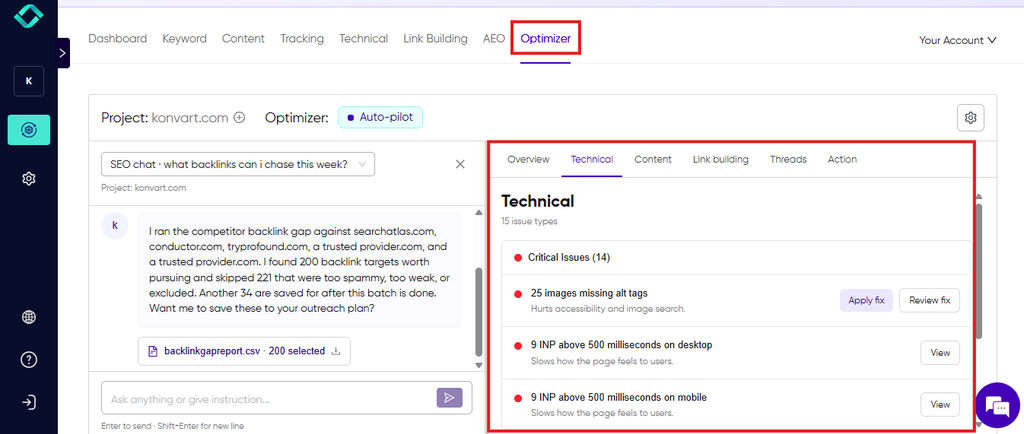
She stays in control the whole time. She decides what Konvart is allowed to change, and anything outside those permissions waits for her approval.
That’s the difference between finding the problem and having it fixed.
Get Your Website Showing Up on Google
When your website isn’t showing up on Google, it usually comes down to one of three situations:
- Google hasn’t found your site yet.
- Something on your site is stopping Google from showing it.
- Your site is on Google but too far down for customers to see.
The 5-minute check tells you which one you’re facing. From there, most fixes are specific and quick: submit a sitemap, switch off a hidden setting, remove a stray tag, repair a broken page.
Ranking higher takes longer, but it follows a clear path of better pages, a few good links and patience.
The harder part is keeping on top of it.
Settings get switched back on, plugins change and new pages get missed, and for a founder or a small marketing team there’s rarely time to check every week.
Konvart is an all-in-one SEO platform that finds why your website isn’t showing up on Google, fixes what it’s allowed to, and tracks your most important pages until they rank.
It sets itself up from your domain, makes sure your sitemap is in place and submitted to Search Console, and audits your site every week for issues like noindex tags, robots.txt blocks and broken pages.
You decide what it can change, and it gives you clear steps for anything it can’t.
See what Konvart would do for your site. The 7-day free trial needs no card.
Frequently Asked Questions
Why is my website not showing up on Google?
Most websites that don’t show up on Google fall into one of three situations. Google hasn’t found the site yet, which is common for new sites. Something on the site is blocking Google, such as a “hide from search engines” setting, a noindex tag or a robots.txt rule. Or the site is indexed but ranks too low to be seen.
How do I get my website on Google for free?
Set up Google Search Console, verify your site and submit your sitemap. Then use the URL Inspection tool to request indexing for your most important pages. Add your site to your Google Business Profile, social profiles and relevant directories so Google has more ways to find it. None of this costs anything, and you don’t need to pay Google to appear in regular search results.
How long does it take for a new website to show up on Google?
A new website usually gets indexed within a few days to a few weeks after you submit its sitemap in Search Console. Showing up for searches that bring in customers can take a bit longer, especially for competitive searches. Sites with links from other websites tend to be found and indexed faster.
Why does my website show up for my business name but not for my services?
Your site is indexed, but it isn’t ranking high enough for the searches customers use. Other sites are judged more relevant or trustworthy for those searches. Improving your service pages, choosing realistic searches to target, earning links from other sites and fixing speed issues all help you rank higher over time.
Why is my business not showing up on Google Maps?
Google Maps results come from your Google Business Profile, not your website. Make sure your profile is claimed, verified and complete, with the right primary category and the same name, address and phone number as everywhere else online. Distance also matters, so you may not appear for people searching from farther away even with a strong profile.
Do I need to pay Google to show up in search results?
No. Regular search results are free, and Google doesn’t accept payment to include or rank websites there. Paid ads appear separately, labeled “Sponsored.” Ads can get you seen immediately, but they stop when you stop paying, while a well-indexed, well-ranked site keeps bringing in visitors.
How do I know if Google has indexed my website?
The quickest check is to search site:yourdomain.com in Google. For a definite answer, paste a page’s URL into the URL Inspection tool in Google Search Console. It will say “URL is on Google” if the page is indexed, or explain why it isn’t. Search Console’s Pages report shows your indexed and non-indexed pages together.
Can I stop my website from disappearing from Google again?
Yes, by checking regularly rather than waiting for customers to notice. Look at Search Console’s Pages report after any redesign, platform move or plugin update. A weekly site audit, such as Konvart’s, flags problems like noindex tags, robots.txt blocks and broken pages as soon as they appear, so you can fix them before your rankings drop.